
 See Our Latest Article on HelloNation
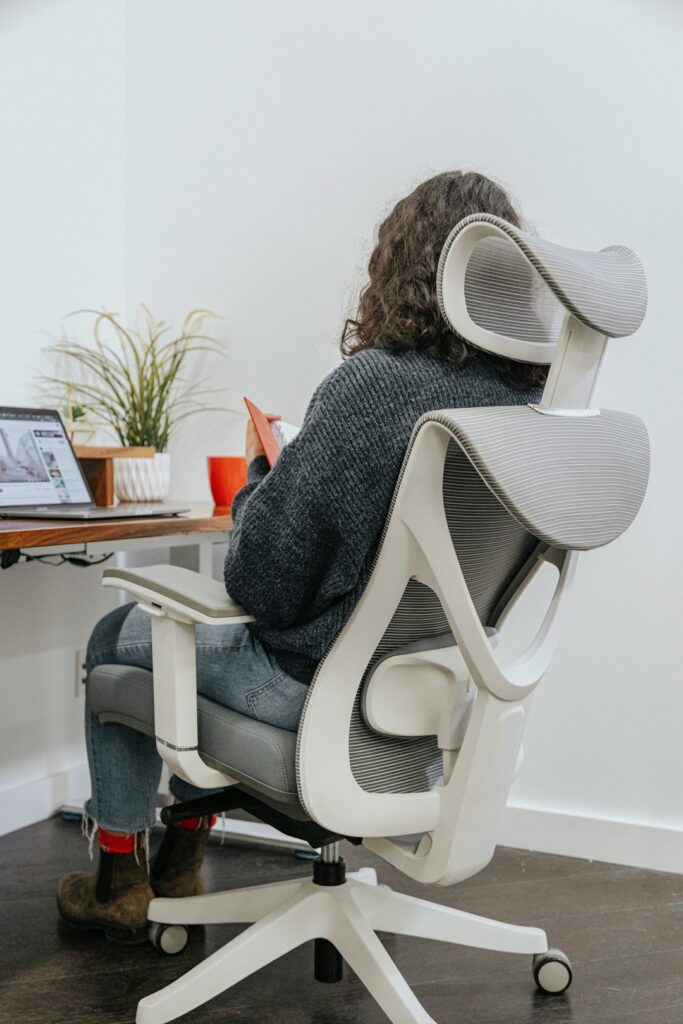
A spine-friendly workspace does not need expensive furniture or a perfect posture. It should allow the head, neck, back, arms, and legs to remain supported while making it easy to change position throughout the day.
For residents working from home, studying, managing household tasks, or spending long hours at a computer, a few thoughtful adjustments can reduce unnecessary strain and make daily movement more comfortable.
What makes a workspace spine-friendly?
A spine-friendly workspace supports a neutral body position and encourages regular movement. Neutral does not mean rigid or motionless. It means the body is arranged so the joints are not repeatedly pushed into awkward angles.
A well-arranged workstation generally allows:
- The screen to be near eye level
- The head to remain balanced over the shoulders
- The elbows to stay close to the body
- The feet to rest securely on the floor or a foot support
- The lower back to receive gentle support
- The user to stand, stretch, or walk without disrupting work
The goal is not to hold one “perfect” posture for hours. Even a well-designed chair can become uncomfortable if a person remains seated too long.
How high should a computer monitor be?
The top portion of the monitor should usually be close to eye level, with the screen positioned directly in front of the user. This allows the eyes to look slightly downward without requiring the neck to bend forward for extended periods.
Place the screen roughly an arm’s length away, then adjust the distance based on text size and visual comfort. A monitor that is too close may encourage squinting or cramped posture. One that is too far away may cause leaning forward.
Laptop users often face a built-in compromise: the screen and keyboard are attached, so raising the screen also raises the keyboard. For longer work sessions, an external keyboard and mouse can allow the laptop screen to be elevated while keeping the hands and elbows in a more comfortable position.
If a separate stand is not available, a stable stack of books or another firm support can raise the screen. The support should be secure and should not block ventilation or create a tipping hazard.
Where should the chair and desk be positioned?
The chair should allow the hips to sit level with, or slightly higher than, the knees. Both feet should rest comfortably on the floor. If the feet do not reach the floor after the chair is adjusted, a firm footrest can help prevent dangling legs and pressure behind the knees.
The lower back should be supported without forcing the pelvis forward. A chair with adjustable support is useful, but a small rolled towel or cushion may provide a temporary improvement if the existing chair leaves a gap behind the lower back.
The desk height should allow the shoulders to remain relaxed while the elbows stay near the sides. If the shoulders rise toward the ears while typing, the work surface may be too high. If the arms reach upward or the wrists bend sharply, the keyboard or chair height may need adjustment.
Armrests are helpful only when they allow the shoulders to relax. If they prevent the chair from moving close enough to the desk, they may create more strain than support.
How can someone improve a home office without buying new furniture?
Many improvements cost little or nothing. Start by changing the arrangement rather than replacing the entire workstation.
Useful adjustments include:
- Raising a laptop with books or a stable platform
- Moving the monitor away from a corner so the body faces forward
- Using a small cushion or folded towel for lower-back support
- Placing frequently used items within easy reach
- Removing clutter that forces twisting or leaning
- Using a footrest if the chair is too high
- Switching between sitting and standing at a counter or elevated surface
- Moving the work area away from glare that causes squinting and forward head posture
A dining table, kitchen counter, or multipurpose room may serve as a temporary office, particularly in homes where work and family activities share space. In those situations, adjusting the screen and keyboard each time may be more realistic than trying to create a permanent setup.
Is standing better than sitting?
Standing is not automatically better than sitting. Remaining in one position for a long period can create discomfort whether the body is upright or seated.
A standing workstation should allow the screen to remain near eye level and the keyboard to sit at a height where the shoulders stay relaxed. The surface should be stable, and the floor should provide enough room to shift weight and take short steps.
Alternating positions is often more practical than choosing one posture as universally correct. For example, a person might sit for focused computer work, stand during a phone call, walk briefly while reviewing notes, and sit again when needed.
Standing on a hard floor for extended periods may contribute to foot, leg, or back fatigue. A supportive mat may help, but it does not replace regular movement or appropriate workstation height.
How often should a person move during computer work?
Short, frequent movement breaks are generally more useful than waiting until the end of the day to stretch. The body benefits from changing position before stiffness becomes intense.
Every 20 to 30 minutes, consider making a small adjustment:
- Shift the sitting position
- Roll the shoulders gently
- Look away from the screen
- Stand up to refill water
- Walk to another room
- Extend the legs
- Take several comfortable breaths while relaxing the jaw and shoulders

A longer break every hour or so can include a brief walk, light mobility exercises, or a change in activity. Movement should remain comfortable and controlled. Stretching aggressively into pain is not necessary.
For households in Lewisboro, seasonal routines can influence movement. Winter workdays may involve more time indoors, while warmer months can make it easier to take short outdoor walking breaks. Snow, wet floors, and bulky winter clothing can also make it harder to move safely around a home workspace, so walkways should remain clear.
What common workspace habits cause strain?
Several habits quietly increase stress on the neck and back:
- Working from a sofa with the laptop on the knees
- Using a phone between the shoulder and ear
- Sitting on a bed for long periods
- Turning the body toward a second screen instead of moving it directly ahead
- Keeping the mouse far from the body
- Leaning toward a screen because text is too small
- Working through discomfort without changing position
- Carrying a laptop bag on the same shoulder every day
A sofa or bed may be comfortable for short periods, but these surfaces rarely provide the support needed for several hours of computer work. If they must be used temporarily, keep the screen elevated, support the arms, and change position often.
When does workplace discomfort need closer attention?
Mild stiffness that improves after movement may reflect prolonged positioning or overuse. However, symptoms that persist, worsen, or interfere with normal activities deserve attention.
Extra caution is appropriate when discomfort is accompanied by:
- Numbness or tingling
- Weakness in an arm or leg
- Pain that travels down an arm or leg
- Loss of coordination
- Significant nighttime symptoms
- A recent fall, collision, or other injury
- Changes in bladder or bowel control
These symptoms are not typical signs of an ordinary workstation problem and may require timely medical assessment. A workspace adjustment can support comfort, but it should not be used to dismiss symptoms that are severe, unusual, or progressively worsening.
A practical setup is one that fits the person, the room, and the work being done. The most useful changes are usually simple: bring the screen closer to eye level, support the feet, keep the arms relaxed, and build regular movement into the day.